
 ×VeloTape
Integration guide
How to use Interactive Brokers with VeloTape
Automatically journal your trades from Interactive Brokers. Set up Flex auto-sync once, or import a CSV export when you need a manual refresh.
Overview
VeloTape connects to IBKR through the read-only Flex Web Service. No TWS or gateway install is required on your machine — paste a Flex Query ID and token in Settings, then sync trades into your journal.
Importing trades via broker sync
This is a one-time setup. After you connect, VeloTape imports trades for the Flex query date range and you can sync again anytime from Settings or the dashboard.
Same-day fills may not appear immediately because of IBKR processing delays (often within 24 hours). For an immediate refresh, use the CSV upload method below.
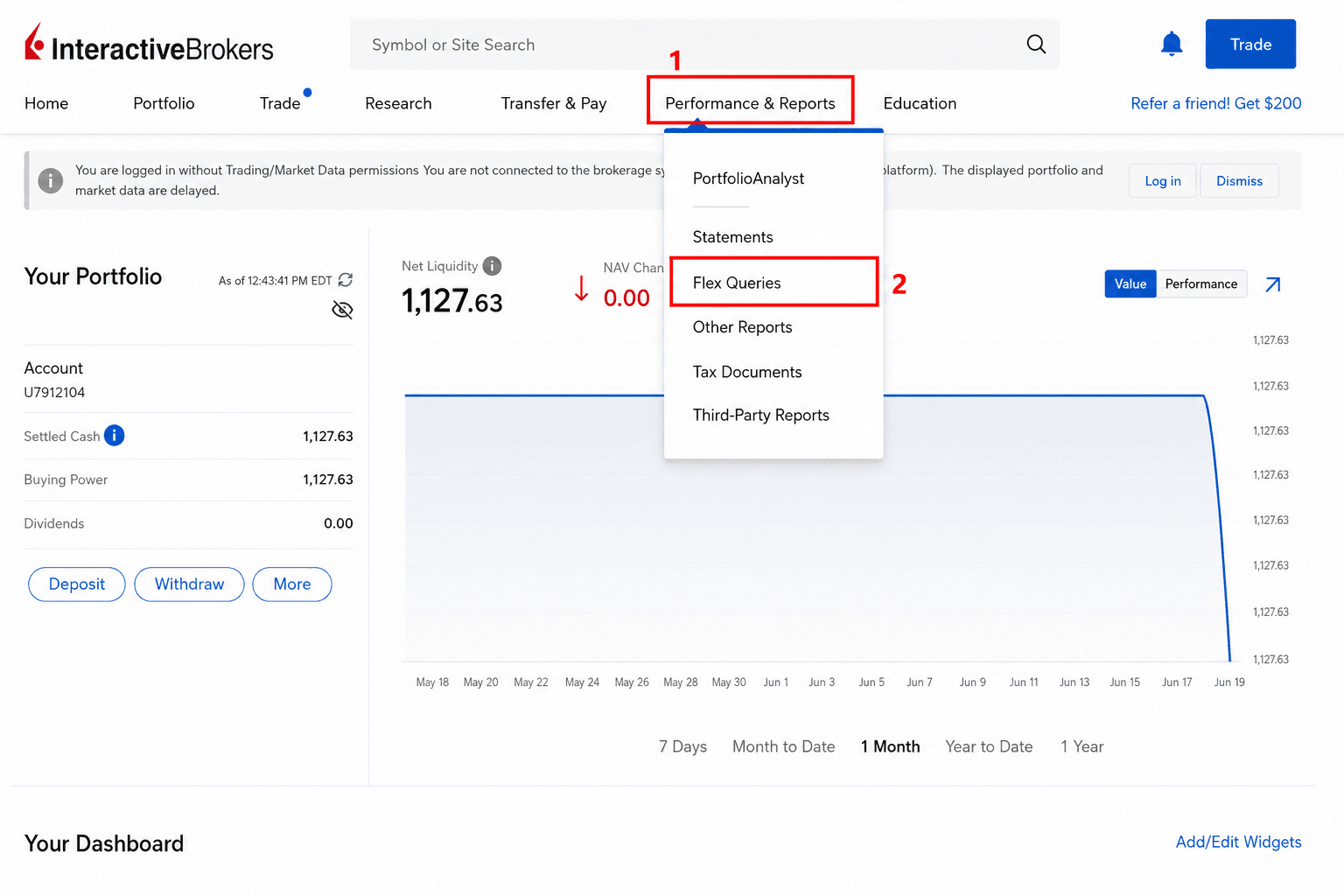
Open Flex Queries in IBKR
- Log in to the IBKR Client Portal.
- Go to Performance & Reports → Flex Queries.
- Keep this page open — you will create a query and generate a token here.
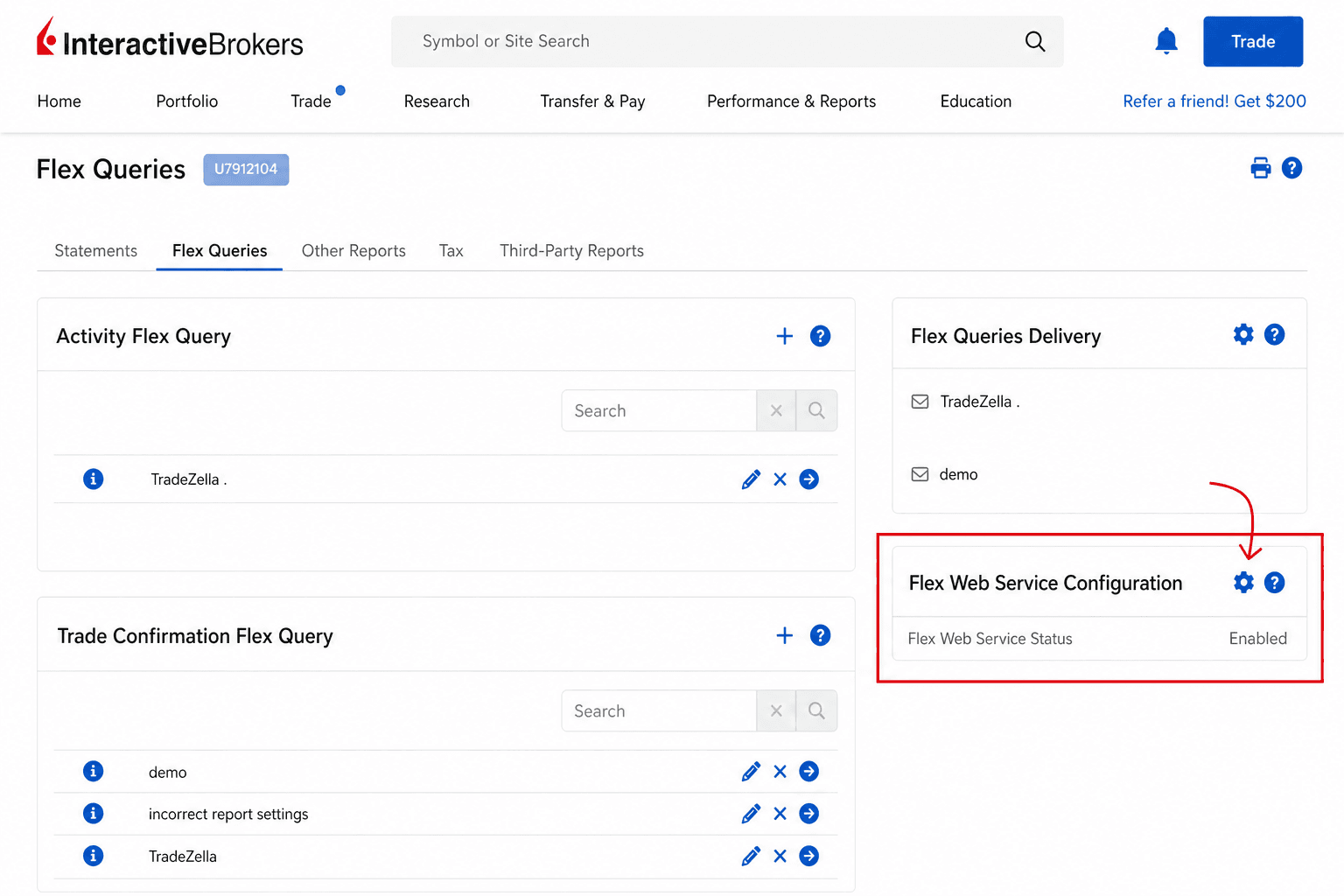
Generate your Flex token
- Click the gear icon next to Flex Web Service Configuration.
- Enable Flex Web Service Status and set the activation period (e.g. one year).
- Click Generate a new Flex Token, then Save.
- Copy the token — treat it like a password.
If sync later fails with an auth error, generate a new token in IBKR and update it in VeloTape Settings → Configure.
Create an Activity Flex Query
- Click the plus icon next to Activity Flex Query.
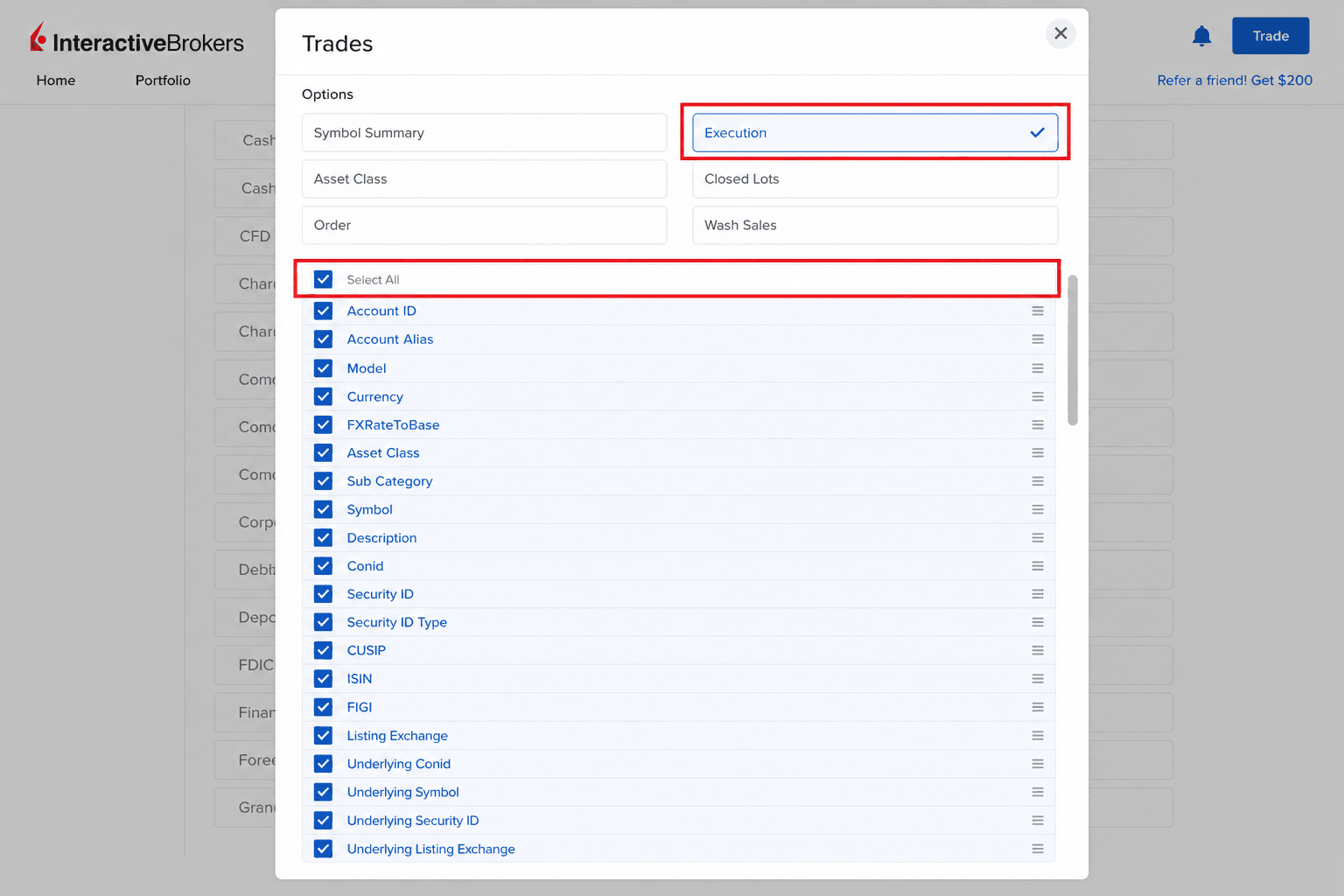
- Name the query (e.g. VeloTape) and choose Trades under Sections.
- Inside Trades, open Executions and click Select All, then Save.
- Set Period to Last 365 calendar days (or your preferred range).
- Under General Configuration use Date format yyyy-MM-dd, Time format HH:mm:ss, and Date/Time separator as a single space.
- Continue, create the query, confirm with OK, then open the query info (i icon) and copy the Activity Flex Query ID.
Use an Activity Flex Query — legacy Flex queries are no longer supported by IBKR's API.
Connect in VeloTape
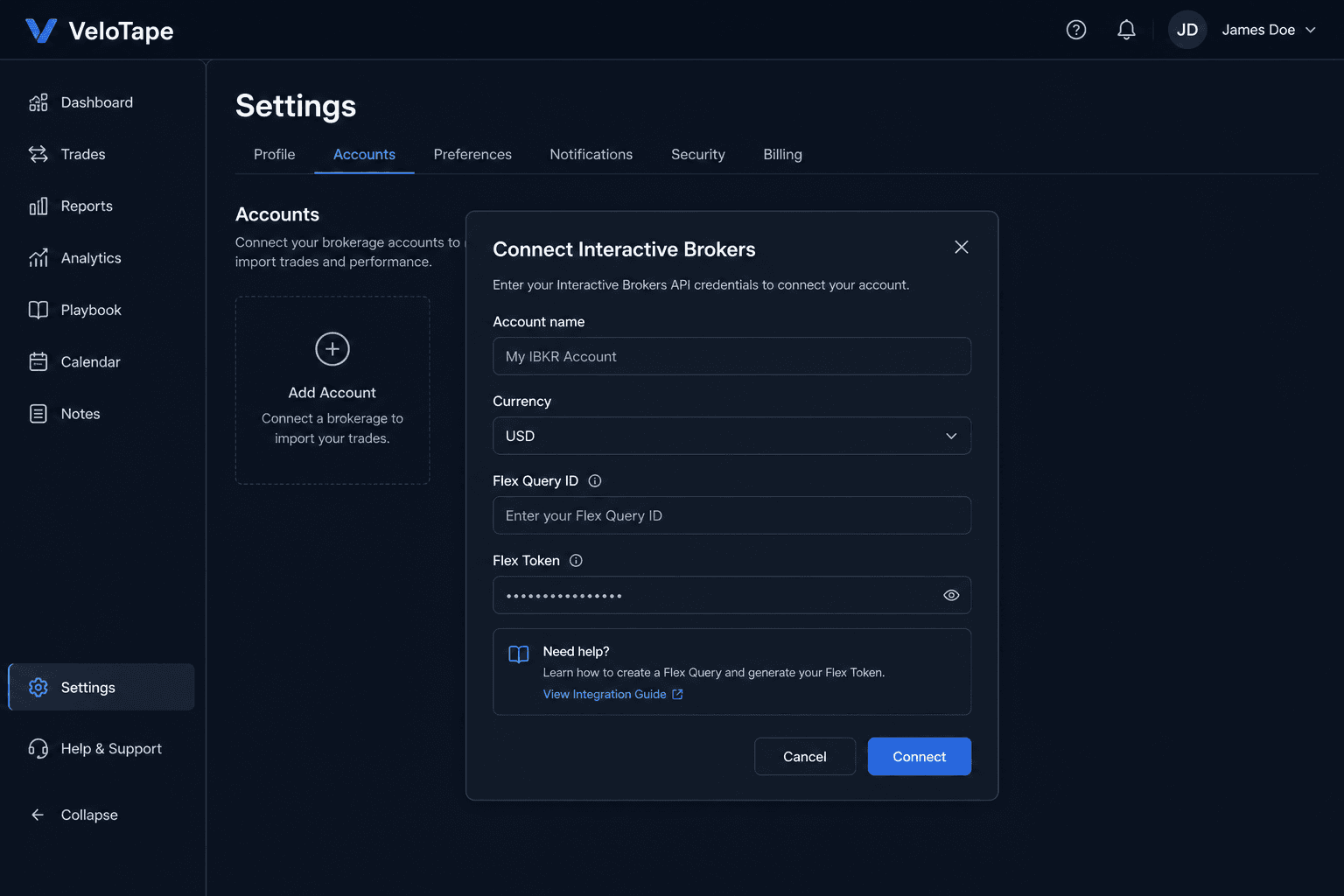
- Open Settings → Accounts in VeloTape.
- Click Add account, choose Interactive Brokers, or use Configure on an existing IBKR account.
- Paste the Flex Query ID and Flex token, then save.
- Click Sync now on the accounts table to import trades.
| Issue | What to try |
|---|---|
| GetStatement failed / generic sync error | Check Query ID and token, disable IP whitelist in Flex Web Service, wait one minute and sync again while IBKR generates the report. |
| SendRequest failed | Wrong Query ID or expired token — regenerate the token in IBKR and reconnect in Settings. |
| IP restriction | Disable IP whitelist in IBKR Flex Web Service settings. VeloTape sync runs from cloud servers. |
| 0 trades imported | Ensure the Flex query includes Trades → Executions and the date range covers your activity. |
| At least one day-old trade required | IBKR may not return same-day activity via Flex. Sync again tomorrow or use CSV upload for today's fills. |
Importing trades via file upload
Use CSV export when you need trades immediately or prefer a manual workflow. Create the Flex query once in IBKR, then re-run it whenever you want fresh data.
Export CSV from IBKR
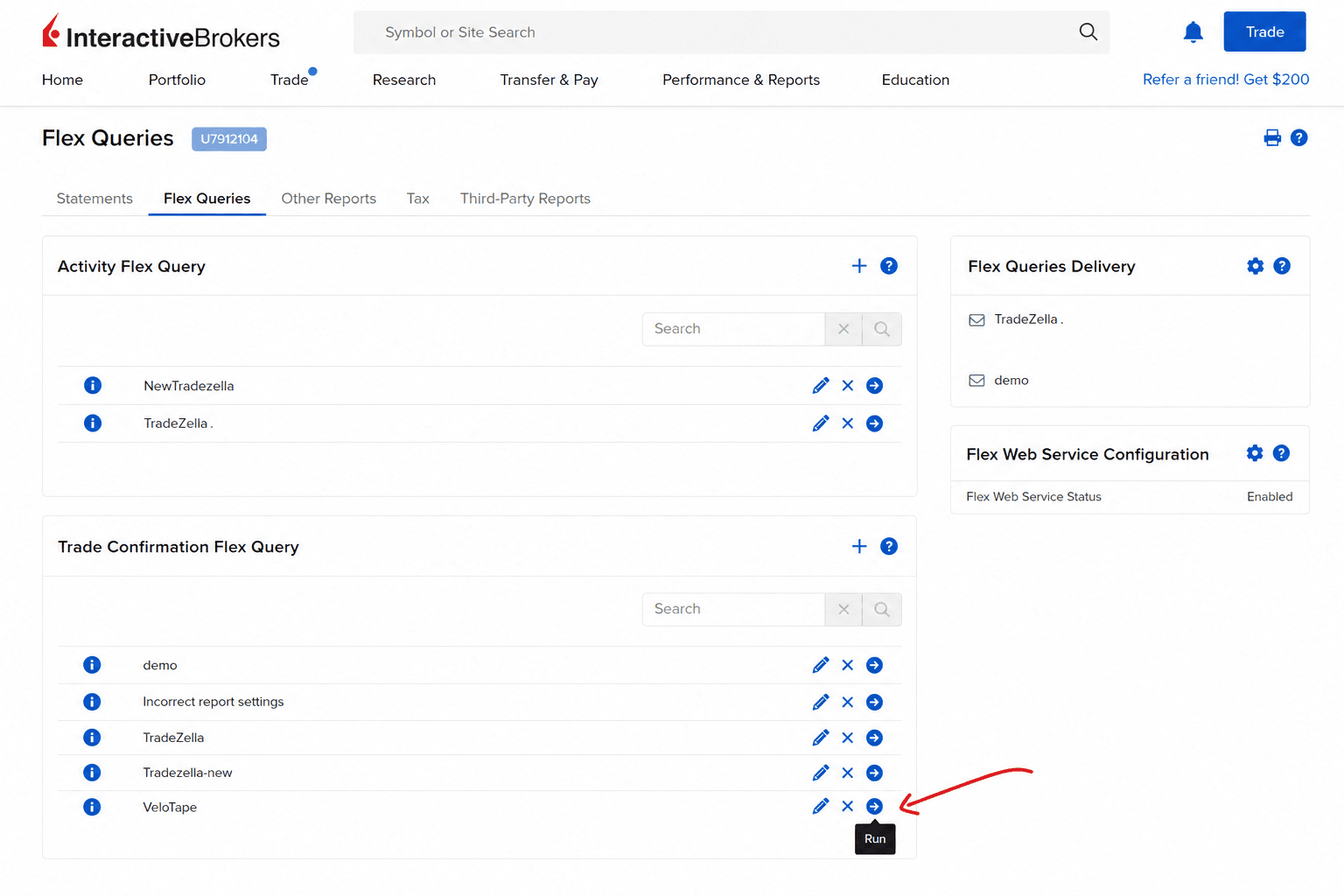
- In Client Portal, open Performance & Reports → Flex Queries.
- Create or reuse a Trade Confirmation Flex Query named VeloTape with Executions → Select All.
- For CSV export, set Date format yyyyMMdd, Time format HHmmss, and Date/Time separator to semi-colon.
- Run the query for your date range and download the CSV file.
Upload into VeloTape
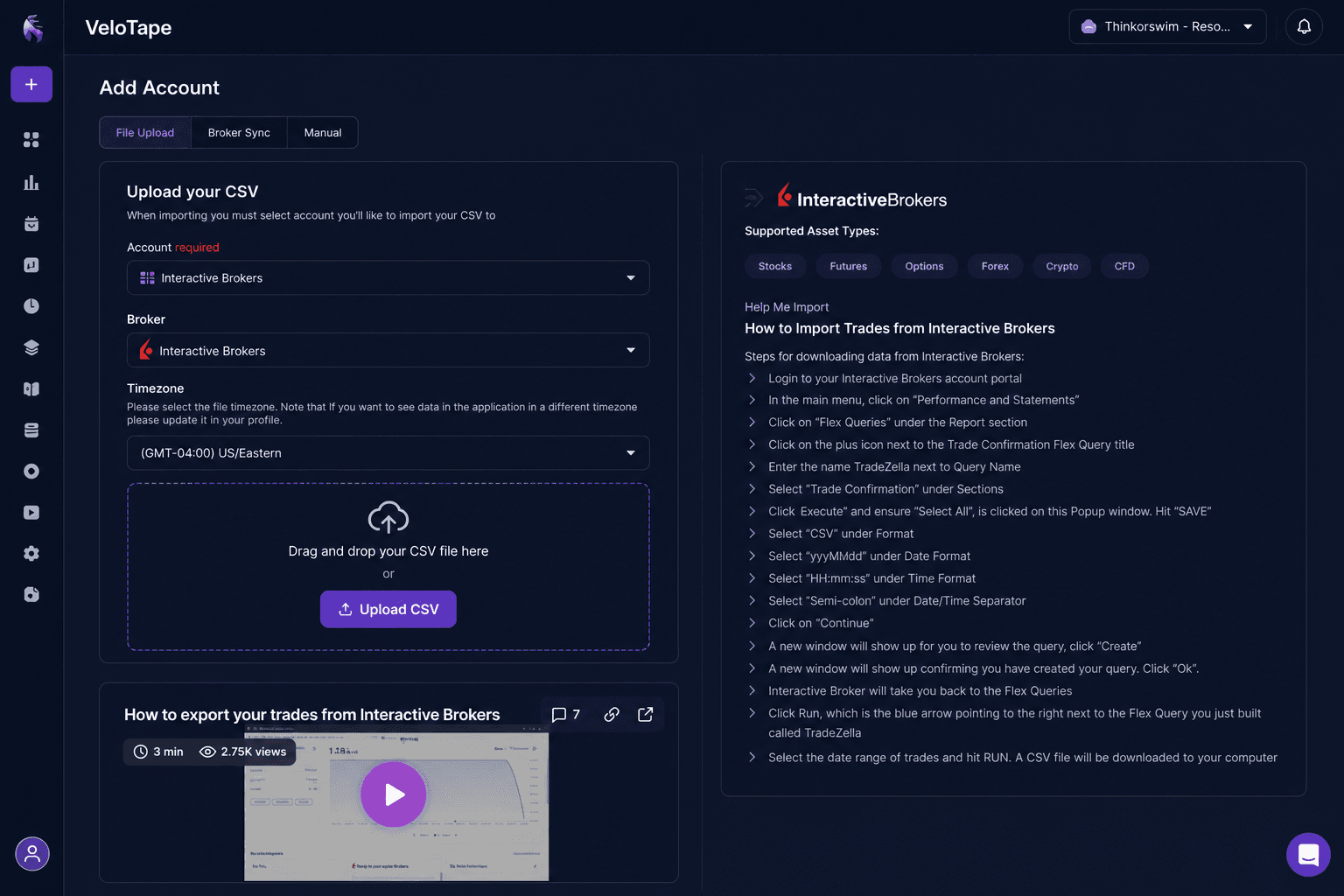
- In VeloTape, open Settings → Accounts → Add account.
- Choose Interactive Brokers and select File upload, or add a manual account first.
- Upload the CSV — executions are grouped into trades automatically.
| Issue | What to try |
|---|---|
| Invalid date/time on import | Re-create the query with Date yyyyMMdd, Time HHmmss, separator semi-colon, then export and upload again. |
| Missing commissions or fees | Include IB Commission and Taxes fields in the Flex query when available. |
Frequently asked questions
- Does VeloTape store my IBKR password?
- No. Auto-sync uses a Flex token and Query ID only. Credentials are encrypted at rest and used server-side during sync.
- How often should I sync?
- After the initial import, use Sync now in Settings or open the dashboard — VeloTape also refreshes stale connections automatically. Same-day fills may lag until IBKR publishes them.
- Can I connect multiple IBKR accounts?
- Yes. Create one VeloTape trading account per IBKR account and link each with its own Flex query or shared query where appropriate.
- Does VeloTape provide investment advice?
- No. VeloTape is a trading journal and analytics tool only.